Appearance
Getting started
The Kraken App is invite-only. There is no public sign-up: your gym creates your account and sends you an activation link. If you do not have one, ask your coach or contact support.
Activate your account
- Open the activation link from your email. It looks like
https://krakenfitness.app/activate/…. - Choose a password.
- Sign in.
Activation links are single-use and expire. If yours no longer works, ask your gym to send a new one, because an expired link cannot be reused.
Install the app
The Kraken App is on the App Store and Google Play. You can also use it in a browser at krakenfitness.app. The app and the website show the same account and the same data.
Sign in with the email address your gym has on file and the password you chose during activation.
Your dashboard
Signing in lands you on the dashboard.
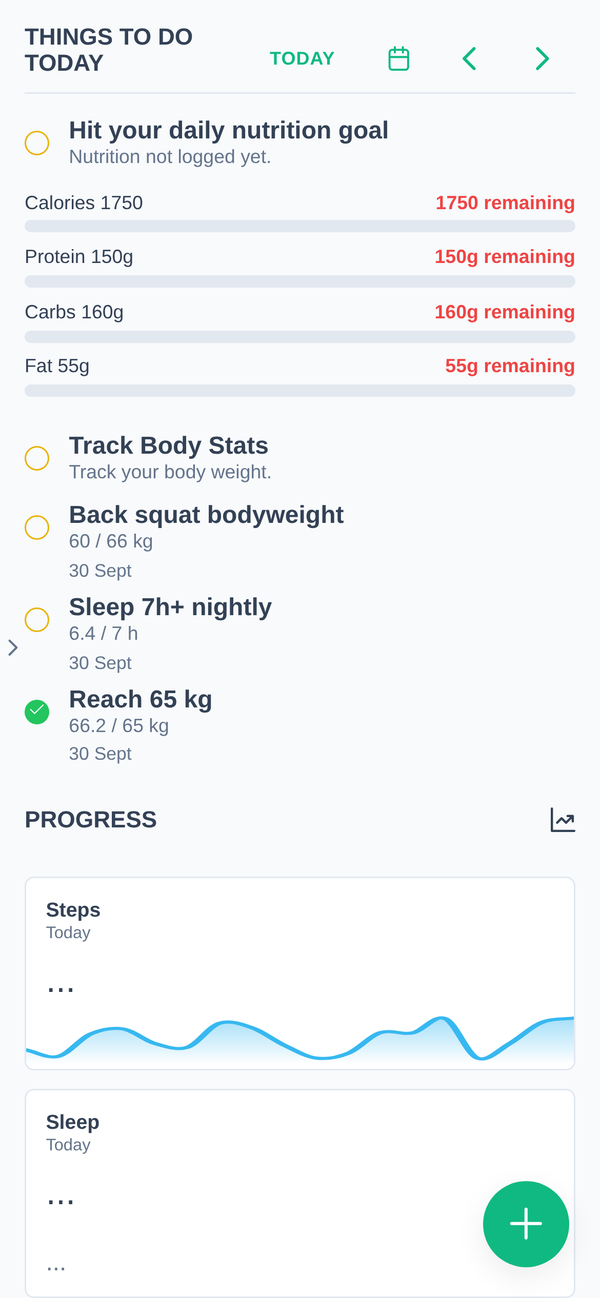
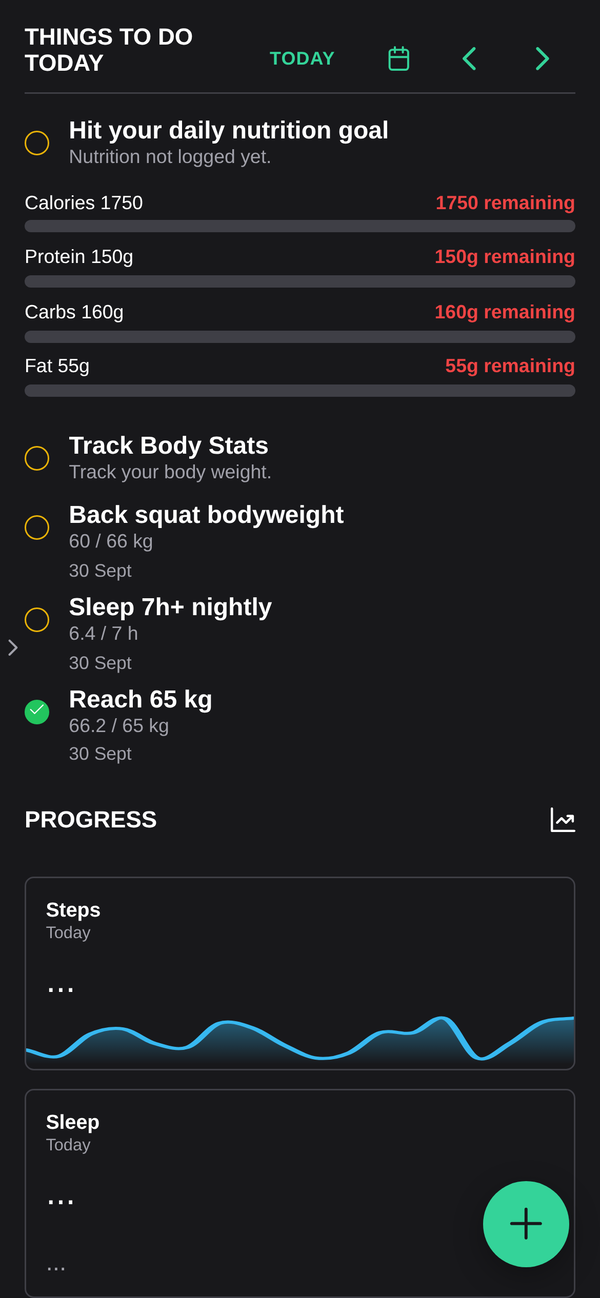
Things to do today is the top of it: today's workout, plus any daily habits your coach has set, such as a step target or a protein target. Tap one to mark it done.
Below that, Progress shows your current numbers at a glance, and Recent Activities is a running list of everything logged on your account. Scroll for more history.
Getting around
On a computer, the menu sits down the left-hand side and stays there.
On a phone there is not room for it, so it hides and you pull it out when you need it. Three ways to do that, and the first is the one worth learning:
- Swipe right anywhere on the screen to open the menu. Swipe left to close it. You do not have to start at the very edge, and the gesture tolerates a bit of a diagonal, so a normal thumb flick works.
- Tap the small arrow at the left edge of the screen.
- With the menu open, tap anywhere on the page behind it to close it.
Some screens have a second menu inside them, listing the sections of that screen. Progress is the main one: the list of metrics on its left is a menu of its own. It opens and closes with the same swipe, so on a phone you swipe to pick a metric, then swipe back to see the chart full width.
The + button
The + button is the fastest way into the four things people do most:
| Log a workout | Either In gym, picking from your program or building your own, or Other for anything else you did, such as snowboarding, hiking or walking, with an activity and a duration |
| Add progress picture | Straight into the camera or your photo library |
| Log weight | A weight and a date, nothing else |
| Open Gym | Book a slot for today |
It is on every screen, so you never have to navigate somewhere first.
What is in the app
| Check-ins | Your regular written, audio or video catch-up with your coach |
| Workouts | What is assigned, and logging what you actually did |
| Bookings and Open Gym | Booking a slot, and cancelling one without losing it |
| Progress | Weight, measurements, nutrition and photos over time |
| Messages | Chat with your coach |
| Membership | Sessions left, payments, and your card on file |
| Integrations | Connect a wearable or nutrition app so data arrives on its own |
| Challenges and rewards | Optional, if your gym runs them |
Which of these you see depends on what your gym has switched on. A section you have been told about but cannot find is a question for your coach.
Set it up the way you want it
Worth five minutes on day one, under Settings:
- Units: kilograms or pounds, centimetres or inches, set separately.
- Notifications: which of email, SMS, push and browser you want.
- Two-factor authentication: worth switching on. An authenticator app is stronger than email codes.
All three are covered in Account settings.
Still stuck?
Troubleshooting covers what goes wrong most often. If that does not do it, contact support.